Understanding Standalone Photocopiers
Defining the PC-Free Copying Workflow
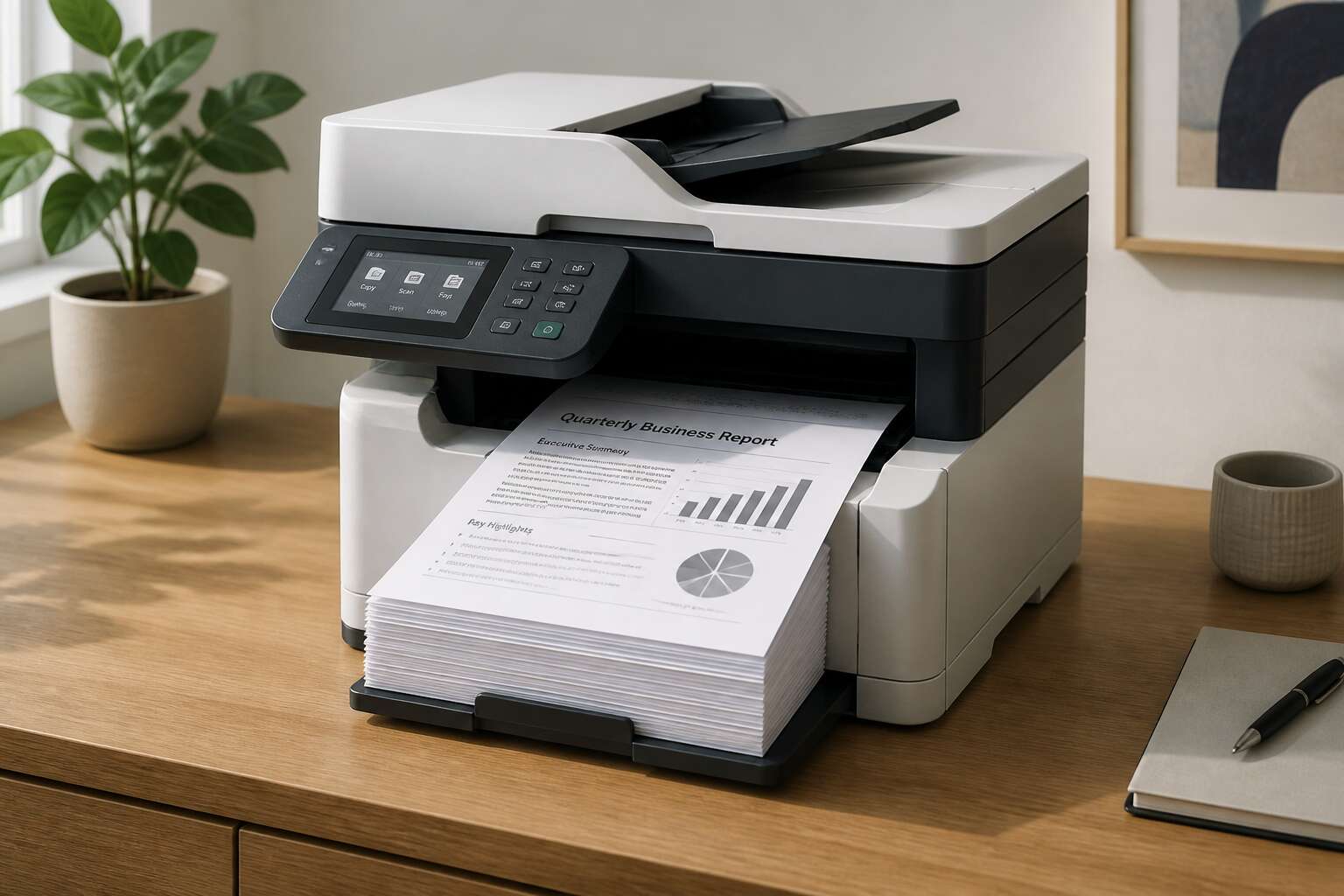
A 2023 office audit in Durban revealed half of all missed copies stem from network dropouts. That is why the standalone machine is returning to favour. A photocopier without computer operates with its own processor and memory. The PC-free copying workflow is a direct sequence of physical actions. You place the original on the glass, choose the zoom ratio, and press start.
This removes driver conflicts and dead zones. It gives you a tactile certainty. For a farm co-op or a law firm, it works when nothing else does. The steps are few:
- Lift the lid and set down the source.
- Select output, single-sided or duplex.
- Press start and collect the collated stack.
In South Africa, where load shedding interrupts everything, a photocopier without computer remains a reliable tool. It uses less power, boots in seconds, and never asks for a password. This is the essence of the PC-free copying workflow.
Key Differences Between Networked and Standalone Models
A networked copier waits for permission. A standalone unit asks for nothing. In offices across Durban and Johannesburg, the difference shows up in missed deadlines and frustration. A photocopier without computer bypasses the entire chain of command.
Consider the gaps:
- Networked units need IP configuration and driver updates.
- Standalone units accept a physical original and produce a copy directly.
- Networked machines often require admin credentials to clear jams.
- Standalone models put every control on the front panel.
For a small South African practice, I have watched the standalone unit remove the helpdesk from the equation. The operator controls the entire process. No server, no login, no timeout!
Internal Memory and Storage Capabilities
An operator in Durban once watched a standalone machine stall for three minutes. The culprit was a full scan buffer. A photocopier without computer carries its own internal memory, and that memory is the silent gatekeeper of every job.
Standalone units use storage for three essential tasks:
- Buffering scanned originals before the print engine engages.
- Retaining job data during a brief power interruption.
- Storing custom templates for recurring copy settings.
Entry level models might hold 512 megabytes. Production units offer 16 gigabytes or more. When the buffer fills, the machine pauses. The operator waits, the tray sits idle, and the deadline tightens. Understanding this storage capacity is the difference between a smooth morning and a frustrated queue in Johannesburg.
Common Use Cases for Independent Copiers
Across South Africa, the photocopier without computer solves a specific problem: getting paper moving when a network is overkill. A notary in Pretoria copies client affidavits without exposing them to IT flaws. A spaza shop in Limpopo prints monthly specials every Friday, regardless of load shedding.
Independent copiers also handle burst workloads. Exam venues in Johannesburg duplicate answer sheets in minutes, while construction firms on remote sites run their own documentation without relying on a central server.
- Legal offices requiring confidentiality
- Retail and micro businesses with basic copying needs
- Event organizers needing on the spot reproduction
Standalone machines reduce the delay between original and copy, a direct advantage in each of these situations.
Essential Features of Copiers That Operate Without a Computer
Built-In Touchscreen Control Panels
Some machines demand a whisper, not a shout. A standalone unit with a built in touchscreen control panel offers a curious intimacy. You interact directly with the machine itself, removing the sterile layer of a desktop interface. This direct engagement is essential for any photocopier without computer, as it transforms the device from a mere peripheral into a self-contained workhorse.
The display is the heart of the operation. A screen that responds without lag is not a luxury; it is a necessity. You will rely on it for every task, from selecting colour modes to adjusting contrast. Consider these core interactions:
1. Previewing scanned images before the drum even warms.
2. Adjusting settings for duplex printing with a single tap.
3. Managing stored templates for frequently used documents.
This touch interface also allows for a level of configuration that older button matrices could never achieve. The visual feedback is immediate, and the learning curve is remarkably shallow. For a South African office where downtime costs money, the speed of the interface matters immensely. The screen becomes a quiet overseer, presenting options clearly and without the need for a separate device.
Yet, the true elegance lies in the absence of the computer itself. The panel offers remote diagnostics, which means the machine can speak to the technician without your input. This feature on a modern photocopier without computer provides a silent awareness of its own health. It is a subtle but profound shift, making the copier a responsible entity in your workflow, not a tool that waits for instructions.
Direct USB and SD Card Printing
Direct USB and SD card ports define the standalone experience of a photocopier without computer. You slide in a flash drive and the machine takes over. No network handshake, no driver installation, no waiting for a desktop to wake up. That raw independence matters in a busy South African office.
What can you expect from these ports? Here are the essential behaviours:
- Native file recognition for PDF, JPEG, and TIFF formats
- Walk-up printing from a memory stick without any software layer
- Scan-to-SD functions that let you store digital copies directly
The port placement matters. Front-facing slots on a photocopier without computer save you from crouching behind the machine in a dusty corner. A quality unit also offers direct file browsing on the touchscreen, letting you select a single document from a folder crowded with last month’s invoices. Saved files keep their formatting, even complex spreadsheets. That turns a standalone copier into a complete document office.
Automatic Document Feeders and Finishing Options
Automatic document feeders reveal a machine’s true temperament. A photocopier without computer should handle forty pages of affidavits without complaint, flipping double-sided originals while you attend to the queue at reception. The good units do this quietly. The bad ones announce every jam with theatrical flair.
Finishing options turn raw copies into polished documents. Stapling, hole punching, and sorting arrive as standard on many standalone models, which means a contract emerges ready for signature rather than as a loose pile of paper. That matters in an office where loadshedding compresses working hours.
Useful feeder features include:
– Mixed paper weight support
– Reversing trays for duplex originals
– Reliable separation of stuck pages
A photocopier without computer, equipped with these options, quietly handles the documents that keep a business moving.
Fax and Email Functionality Without PC Dependence
Forgetting that a photocopier without computer still includes fax and email functionality is a mistake. These standalone machines send scanned documents directly to a fax number or an inbox, entirely without a PC. That means a signed contract can reach a lawyer in Sandton while your laptop stays in its bag, dead as a doornail after loadshedding.
The machine connects to your office phone line or Wi-Fi on its own. You type the address on the touchscreen, press send, and it is gone. Some models even store a contact list for regular clients.
- Fax transmission straight from the glass or document feeder
- Email delivery in common formats like PDF or JPEG
This standalone approach keeps the workflow moving when the desktop is out of commission, which is often the case when the inverters are already drained.
Authentication and User Management On the Device
Nearly half of office security incidents trace back to unattended equipment, but a photocopier without computer shifts that risk to the machine itself. Modern standalone copiers handle authentication directly on the control panel.
Users enter a PIN, swipe a proximity card, or select their name from a directory. The device checks credentials against its own memory, not a server. Employee access levels, job logs, and copy allowances all live locally. No PC is even present!
- PIN codes for individual users
- Card readers for fast staff access
- Role based permissions for colour or output limits
This arrangement stops unauthorised scanning and creates a clear audit trail. You can review past jobs on the screen after loadshedding strikes again. The controls work without any network connection.
Mobile Connectivity Alternatives
A photocopier without computer still needs to fit into a mobile-first workplace. Essential features centre on how the machine receives jobs when no laptop or desktop is present. Most modern standalone copiers include Wi-Fi Direct or a mobile hotspot mode. This creates a temporary network between the device and your phone. Apple’s AirPrint and Mopria Print Service are built into many models, so drivers are unnecessary. Just select the copier from your phone’s share sheet! Some copiers also support Bluetooth and NFC tap-to-print. These options matter in South African offices where load shedding disrupts Wi-Fi routers. The copier’s own interface becomes the command centre, storing scan destinations and download settings locally. Mobile connectivity alternatives include:
- Wi-Fi Direct for peer to peer connections
- Bluetooth pairing for short range transfers
- NFC for instant device recognition
- Mopria and AirPrint for driverless printing
Setting Up a Computer-Free Copying Environment
Initial Configuration via the Device Display
Nearly every standalone copier remains dormant until the first configuration session. The device display, not a laptop, is where the machine learns its role. For a photocopier without computer, the initial setup wizard matters more than any driver installation. You choose language, region, and date; the machine stores these locally.
Next, you enter the paper settings. South African operations typically set A4 as the standard tray, while legal and A5 sizes get assigned to auxiliary trays. An ordered list of configuration essentials helps:
- Set the correct time zone for timestamp accuracy
- Assign paper sizes to each tray
- Enable sleep mode after idle minutes
Done once, these settings let the photocopier without computer run independently. Future adjustments happen through the same display, no PC required.
Connecting to a Local Network Without a PC
After the initial configuration wizard completes, the next trick is wrestling the unit onto your local network without a PC. A photocopier without computer can join office Wi-Fi directly from its own touchscreen. You navigate to network settings, select the SSID, and type in the password. Wired setups just need an Ethernet cable plugged in; DHCP usually sorts the rest.
- Check the cable is secure or the Wi-Fi signal is strong enough.
- Enter a static IP address if your network insists on one.
- Run the built-in connection test from the display menu.
Once the machine grabs an address, it can send scans to shared folders or reach cloud services all by itself. This photocopier without computer becomes a proper network player, ready for the morning rush.
Configuring Scan-to-Folder Destinations Directly
Scan-to-folder configuration determines how well your office moves documents. On a photocopier without computer, you set these destinations directly from the display panel. Enter the shared folder path, type in the credentials, and run the connection test. I have watched operators master this in under five minutes. The device speaks SMB natively and remembers every destination you save.
Physical placement matters equally. The unit needs ventilation, clean power, and enough clearance for the paper trays to swing open. Johannesburg offices often tuck these units into corners. That works until the ADF jams at 8am on a Monday!
A workable destination map keeps the daily workflow predictable:
- A defined folder structure prevents chaos before you touch the display
- Descriptive share names such as “Finance_Invoices_2025” make files findable
- Separating colour scans from black-and-white archival cuts confusion
- Distinct folders per department keep accountability clear
This photocopier without computer handles the entire workflow without further prompting.
Installing Optional Kits for Enhanced Standalone Use
A photocopier without computer is only as reliable as the room it stands in. Dust, heat, and unstable power shorten component life. Keep the unit away from direct sunlight and maintain clear ventilation gaps. Believe me, this matters more than any firmware upgrade.
Optional kits extend standalone capability beyond the base configuration. A second paper tray doubles capacity. A lockable cabinet secures the machine and stores supplies. A key counter module tracks usage per department.
Common upgrades to consider:
- A high-capacity feed unit handles bulk copying sessions.
- A bypass tray adapter supports unusual media sizes.
- A rigid document cover protects the platen glass.
These additions make the photocopier without computer a self-sufficient asset. The device operates without downstream dependencies.
Maintaining Firmware and Settings Offline
South Africa’s irregular power supply exposes a truth many ignore: a photocopier without computer is only as dependable as the caretaker who maintains it. Physical isolation from networked systems does not exempt the device from vigilance. Firmware updates arrive via USB stick or a technician’s flash drive, never through the ether. This offline upkeep demands intentionality.
Settings drift. Paper defaults reset. Authentication timers lapse. I have watched healthy machines stumble after weeks of neglect! Establish a weekly habit of reading the device display, noting odd behavior before it becomes failure. Battery-backed memory preserves configurations during load shedding, but only if the firmware was current when the power cut arrived.
Troubleshooting Common Standalone Copier Issues
Resolving Paper Jams Without Diagnostic Software
Paper jams cause nearly 60% of copier service calls. When your photocopier without computer refuses a page, there is no diagnostic screen to point at the exact roller. You are on your own! Open every hatch calmly. A gentle pull beats a sharp tug.
Work through this order:
- Check the input tray for crumpled sheets.
- Inspect the rubber wheels along the paper path.
- Clear the exit slot at the back.
These are the usual hiding spots. A torch and a pair of plastic tweezers solve most standalone jams. Remove paper in the same direction it travels. If a piece tears, check the rear sensor. The machine will not tell you where it is. That is the reality of going solo.
Managing Low Toner or Ink Warnings On-Screen
When your photocopier without computer flashes a low toner warning, the on-screen message is a suggestion, not a diagnosis. Unlike networked models that report yield estimates back to an IT dashboard, a standalone machine keeps its calculations hidden. You must interpret the warning yourself.
Here is a practical order for addressing the warning:
- Open the front access panel and remove the imaging unit.
- Gently rock the toner cartridge side to side to redistribute residual powder.
- Reinstall the cartridge and run a test page.
If the print quality remains pale after this routine, the cartridge is genuinely spent. Replace it with a unit that matches the exact model number. After installation, the photocopier without computer will suppress the warning only after it has detected the new cartridge. Expect the machine to cycle through a brief calibration phase. That is normal. Let it finish before sending your next job.
Addressing Network Connectivity Problems From the Panel
When a standalone machine loses its network connection, the silence feels louder than any error code. The panel is your only instrument for diagnosis, and it is more capable than most assume. You must navigate through the menu structure, typically under Settings or Network, to view the current IP address and connection status. A photocopier without computer relies on this direct interface to reveal whether it has leased an address or is sitting in a digital void.
Here is a practical sequence to re-establish communication:
1. Navigate to the network settings page on the display.
2. Select the option to renew the DHCP lease or force a reconnection.
3. Confirm that the subnet mask and gateway match your router’s details.
4. Ping the machine from your mobile device if possible.
A common culprit involves a static IP that conflicts with another device on the network. Change the address through the panel, not the router. The photocopier without computer will often respond to a simple reboot of its network card, but a manual configuration through the display remains the most reliable path to a stable connection. Verify the DNS settings as well, since an incorrect entry will halt all traffic even when the link appears active.
Recovering From Frozen Touchscreen Interfaces
A frozen touchscreen on a photocopier without computer halts every task. Recover the interface with a methodical sequence:
- Press and hold the main power button for ten seconds.
- Disconnect the power cord for one minute if the screen remains dark.
- Locate the recessed reset button near the control board, then press it with a paperclip.
After restart, the interface may still lag. Check for errant debris on the screen edges. A stylus or fingernail can sometimes trigger a stuck capacitive sensor. Calibration is usually available in the maintenance menu. We can access it if the panel responds to physical buttons. Patience matters. A hurried tap often worsens the state.
Clearing Stuck Print Queues Directly on the Device
Troubleshooting Common Standalone Copier Issues Clearing Stuck Print Queues Directly on the Device
Every office has met a job that refuses to leave the queue. On a photocopier without computer, that queue lives inside the machine. You cannot reboot a server to clear it. You must talk to the panel directly.
Press the Job Status key. Many standalone units label it as Process or Active Jobs. Find the stuck item, often marked with a caution symbol, and select Cancel. If the panel accepts, the queue clears instantly. Some machines need a firmer approach.
- Enter the System or Maintenance menu.
- Select Job Queue or Active Jobs.
- Choose Clear or Delete for each stalled entry.
- Resend the job from the original USB, SD, or mobile source.
Most stuck queues on a photocopier without computer clear without a technician. The machine simply needs patient, methodical direction.
Comparing Standalone Copiers With PC-Required Alternatives
Speed and Efficiency Differences in High-Volume Jobs
A high-volume job in a busy South African office reveals the real cost of dependence. I have seen teams wait while a computer wakes from sleep, then watch a driver stall. A photocopier without computer removes those delays. It handles long runs using its internal controller, so the machine keeps feeding pages while the operator pulls finished stacks. The efficiency gap comes down to these factors:
- Direct job initiation from the panel
- No waiting for software handshakes
- Immediate error recovery without rebooting
Standalone copiers finish a 5000 page run faster because they never wait for external software. PC-required alternatives often fall behind when network traffic spikes. I prefer the standalone unit for throughput.
Cost Savings on Hardware and IT Support
Rands spent on a dedicated PC for the copy room often rival the cost of the machine itself. A photocopier without computer changes that calculation. You do not buy the workstation, the print server, or the annual software renewal. The hardware cost drops immediately. IT support requirements follow the same path. Driver installations, spooler resets, and reconnection sessions after network changes disappear. The technician cares for the machine itself, and that is a shorter job.
Consider what leaves the monthly budget:
- Dedicated PC hardware
- Print management software subscriptions
- Helpdesk hours spent on PC-copier links
Those funds cover the service contract instead. The machine stands alone, and the balance sheet shows it.
Security Advantages of Local-Only Processing
The quietest place in many offices is the copier room. When a machine depends on a PC, that quiet hides a constant transfer of data. A photocopier without computer ends that transfer at the device itself. Scanned pages, copied images, and send logs remain inside the metal housing. For a South African business, this removes an entire layer of vulnerability.
A PC-connected setup creates visible points of failure:
- Files linger on the workstation’s local drive after scanning.
- Print spooler errors can leave recoverable data in system folders.
- Network authentication credentials may be stored on the PC.
The standalone model carries none of these burdens. Processing occurs entirely on the copier’s own board. When the job finishes, the memory clears. There is no external operating system to patch and no third party application to break. The security advantage is structural, not procedural. Choosing a photocopier without computer means choosing a machine that forgets. That forgetfulness is the point.
Limitations in Editing and Customization
A photocopier without computer is a specialised tool, not a design studio. Compare it to a PC-required setup and the editing limits appear quickly. The on-board screen allows brightness, contrast, and scaling tweaks. That is the limit. A PC-connected copier can pull templates, apply watermarks, or adjust ICC colour profiles through software. A standalone model offers presets, not a canvas.
The trade-off is worth stating:
- No custom OCR language packs beyond the installed set.
- No driver-level override for unusual paper sizes.
- No plugin architecture for workflow extensions.
These constraints are the price of independence. The photocopier without computer avoids IT support overhead, but it also avoids the software ecosystem. For many South African offices, that trade is sensible.
Evaluating Hybrid Models With Optional PC Connectivity
A standalone machine forces every job through its own interface. A photocopier without computer operates independently, while PC-required alternatives lean on a host for driver-level commands. Hybrid models with optional PC connectivity give you both worlds. You can leave them untethered for daily copying, then attach a laptop for complex finishing.
For many South African businesses, the choice comes down to uptime. A photocopier without computer eliminates the failure point of a PC, but it removes software flexibility. When evaluating hybrid models, inspect the transition cost.
- How quickly does the device switch between standalone and networked modes?
- Does the optional PC connection require a reboot, or does it handshake on the fly?
- Are the standalone firmware features identical to the PC-driven settings?
The answers reveal whether the hybrid earns its place. The standalone path offers privacy and simplicity. The hybrid offers a compromise, provided the transition remains seamless.

0 Comments