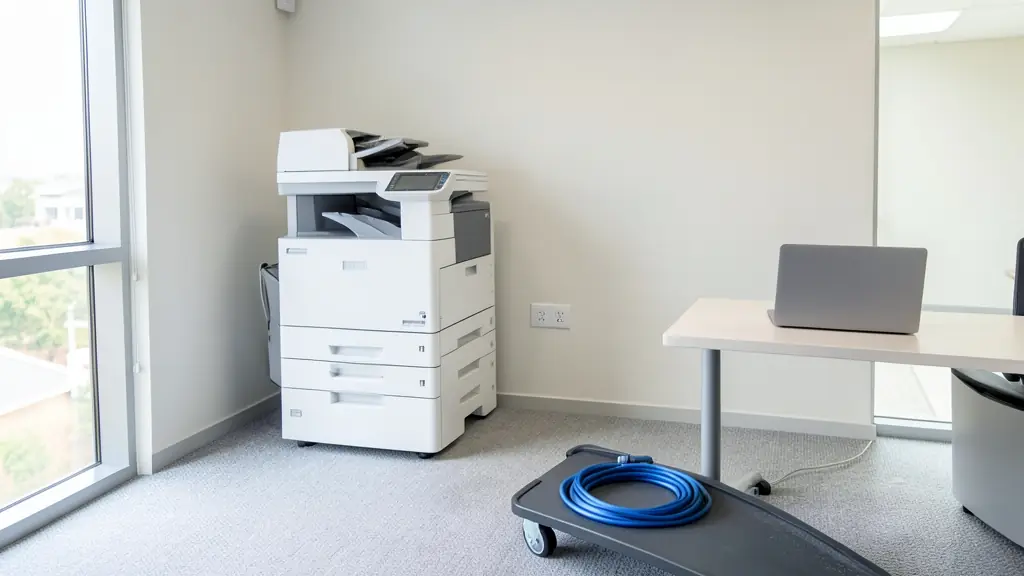
Good copier installation is more than plugging the machine in. It has to get through the door and up the stairs, sit near a plug point and a network point, print from every computer, scan to email and shared folders, and keep each department's pages apart. Most dealers include delivery and set up in the price of a new, rented or leased machine, but what they set up varies. Send one request and we pass it to independent copier dealers and technicians near you, who quote you directly.
Getting the machine in the door
A floor standing A3 copier is heavy and wide, especially with a finisher and paper decks. Measure doors, passages and the lift, tell the dealer about stairs and narrow corners, and ask whether parking is close to the entrance. The copier needs room for trays and doors to open, airflow around it and its own plug point in many offices. See photocopiers for more on size and space. Ask the dealer to check whether the copier may go on an inverter or UPS before you plug it in, because big copiers draw a lot of power when they warm up.
On the network and on every computer
The technician gives the copier a fixed network address, installs print drivers on each computer or a shared print server, and sets up printing from phones if you want it. Your IT person or provider should be there or on the phone, with the network details and admin access ready. Ask for a short handover sheet with the address and settings, so a later router change does not leave everyone unable to print. If staff print from home laptops or tablets too, say so, as each device needs the driver or an app.
Scan to email and scan to folder
Scan to email needs the email account's SMTP settings: the server, port, security and a sign-in. Many email services now need modern sign-in or an app password, and older copiers may not support it. That is the usual reason scan to email suddenly stops working after a password change or an email system update, and why many offices move to scan to folder (SMB) on a shared drive or to a cloud folder instead. Ask the dealer which methods your model supports before you sign. Our multifunction printers page explains the scanning features.
User codes, secure print, training and moving
User codes and department accounting show who prints what. Secure print holds a job until you log in at the machine, useful for HR, medical and legal offices. Ask for a short training session for staff on loading paper, clearing jams, replacing toner and using the scan buttons, and keep the admin password somewhere safe. Moving office? The dealer usually needs to move the copier, because moving it yourself can damage it and void the service contract.
What to put in your request
- Make and model of the copier
- Floor, stairs, lift and door widths
- Number of computers that must print
- Scan to email, folder or cloud
- User codes or secure print wanted
Copier Installation and Networking for offices, schools and home offices
- Home offices: a small MFP set up on home Wi-Fi with scan to email from the panel
- Small businesses and shops: one copier delivered, networked and scanning to a shared folder
- Corporate and head offices: copiers on several floors set up with secure print and department codes
- Schools, colleges and universities: a staff room copier with user codes so each department sees its pages
- Medical practices, clinics and hospitals: a practice copier set to scan straight into a folder for patient files
- Law firms, accountants and agents: an attorney's copier with secure print and scans to a client folder
- Government and municipalities: copiers across offices set up to the department's network rules
- Factories, mines and warehouses: a depot copier set up on a site network far from the head office
- Churches, NGOs and community groups: a church office copier networked so volunteers can print from laptops
Frequently asked questions
Do you install copiers yourselves?
Why did scan to email stop working?
Can the dealer move my copier to a new office?
What should be ready on installation day?
Copier Installation and Networking by province and city
- Johannesburg
- Pretoria
- Centurion
- Midrand
- Sandton
- Randburg
- Roodepoort
- Krugersdorp
- Randfontein
- Germiston
- Boksburg
- Benoni
- Kempton Park
- Alberton
- Vanderbijlpark
- Vereeniging
- Durban
- Pinetown
- Pietermaritzburg
- Richards Bay
- Newcastle
- Ladysmith
- Gqeberha (Port Elizabeth)
- East London
- Kariega (Uitenhage)
- Mthatha
- Cape Town
- Bellville
- Paarl
- Stellenbosch
- George
- Worcester
- eMalahleni (Witbank)
- Middelburg
- Secunda
- Mbombela (Nelspruit)
- Rustenburg
- Brits
- Klerksdorp
- Potchefstroom
- Mahikeng
- Polokwane
- Tzaneen
- Kimberley
- Upington
- Bloemfontein
- Welkom
- Sasolburg